
Installing WSL on Windows and Basic Operations
Preface
Recently, I needed to use Ubuntu for development. Setting up a full virtual machine consumes too many resources, and since WSL is available, I decided to install WSL for Ubuntu development. Honestly, this is much better than a virtual machine, especially WSL2, which can directly access the host's GPU (tested and works great). Without further ado, let's get into today's main topic.
Here is the official Microsoft WSL documentation:
1. Install WSL
- Install directly via the command line:
wsl --install- You also need to ensure the following features are enabled (
Control Panel-Programs-Turn Windows features on or off):
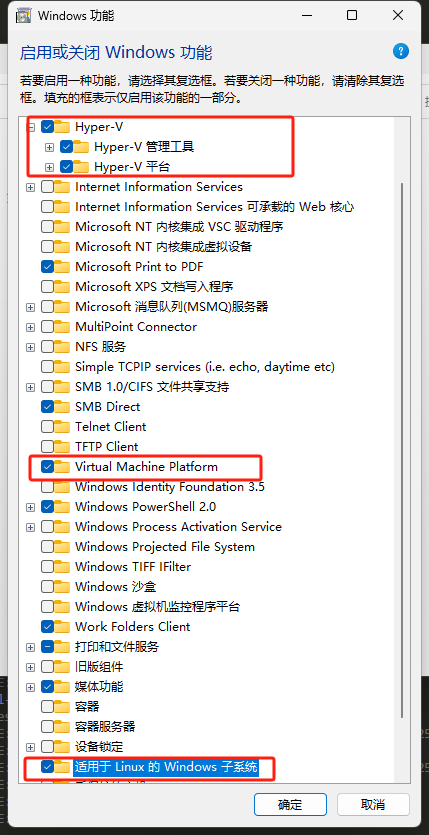
2. Install Linux Distributions
(1) Install Official Microsoft Images
For this method, you can refer to:
https://learn.microsoft.com/en-us/windows/wsl/install-manual#downloading-distributions
(2) Import Using an Image
- Download the Official Ubuntu RootFS
Ubuntu officially provides the original minimal root filesystem (tar archive) for direct download. For version 24.04, you can download it from here (official daily builds):
https://cloud-images.ubuntu.com/releases/24.04/release/

# Debian RootFS: https://cdimage.debian.org/cdimage/ports/latest/hurd-amd64/
Choose the appropriate package to download based on your platform and needs. For example: ubuntu-24.04-server-cloudimg-amd64-root.tar.xz
- Import as a WSL Instance
wsl --import Ubuntu-24.04-Clean D:\WSL\Ubuntu-24.04-Clean D:\Images\ubuntu-24.04-rootfs.tarUbuntu-24.04-Clean: Instance NameD:\WSL\Ubuntu-24.04-Clean: Virtual Disk Path
- Start the Instance
wsl -d Ubuntu-24.04-Clean- Run the following initialization commands after logging in for the first time:
adduser yourname
usermod -aG sudo yourname
(3) Import Using Your Own Exported Image
Image export command: wsl --export Ubuntu my-ubuntu-backup.tar
Then you can refer to the method in section (2) to import it.
3. Other WSL Operations
- List all instances:
wsl --list --verbose - Start and use a new instance:
wsl -d <Instance Name> - Delete an instance:
wsl --unregister <Instance Name> - Image export command:
wsl --export Ubuntu my-ubuntu-backup.tar - Image import command:
wsl --import <New Instance Name> <Installation Path> <Image File Path> - Shut down all running WSL instances:
wsl --shutdown - Terminate a specific instance forcefully:
wsl --terminate <Instance Name>
AI Translation | AI 翻译
This article was translated from Chinese to English by AI. If there are any inaccuracies, please refer to the original Chinese version.
本文由 AI 辅助从中文翻译为英文。如遇不准确之处,请以中文原版为准。